Help

Find your way.
Then get on with your day.

How to set Vakyartha up, use it every day, keep it under your control, and fix things when they go wrong.

01 / First steps

From download
to your first answer.

  1. Install the app

    Follow the download page. If you open the app yourself and macOS won’t open it, go to System Settings, Privacy & Security, and choose Open Anyway. You only need to do this once.

  2. Connect a model

    The first time you open Vakyartha, it shows Get started: a short checklist of what it needs. For a free model that runs on your Mac, Vakyartha offers to install the app that runs it and downloads the models it needs. You can also add your own key for an online AI service.

  3. Ask in your own words

    Type in the message box, or pick one of the ideas under the greeting. Small answers stay in the chat. Larger ones, like a table, chart or form, open in the canvas beside it.

  4. Add more when you’re ready

    Voice, apps, connections and the look of the app are all optional. Come back to Settings, Get started at any time to see what is still missing.

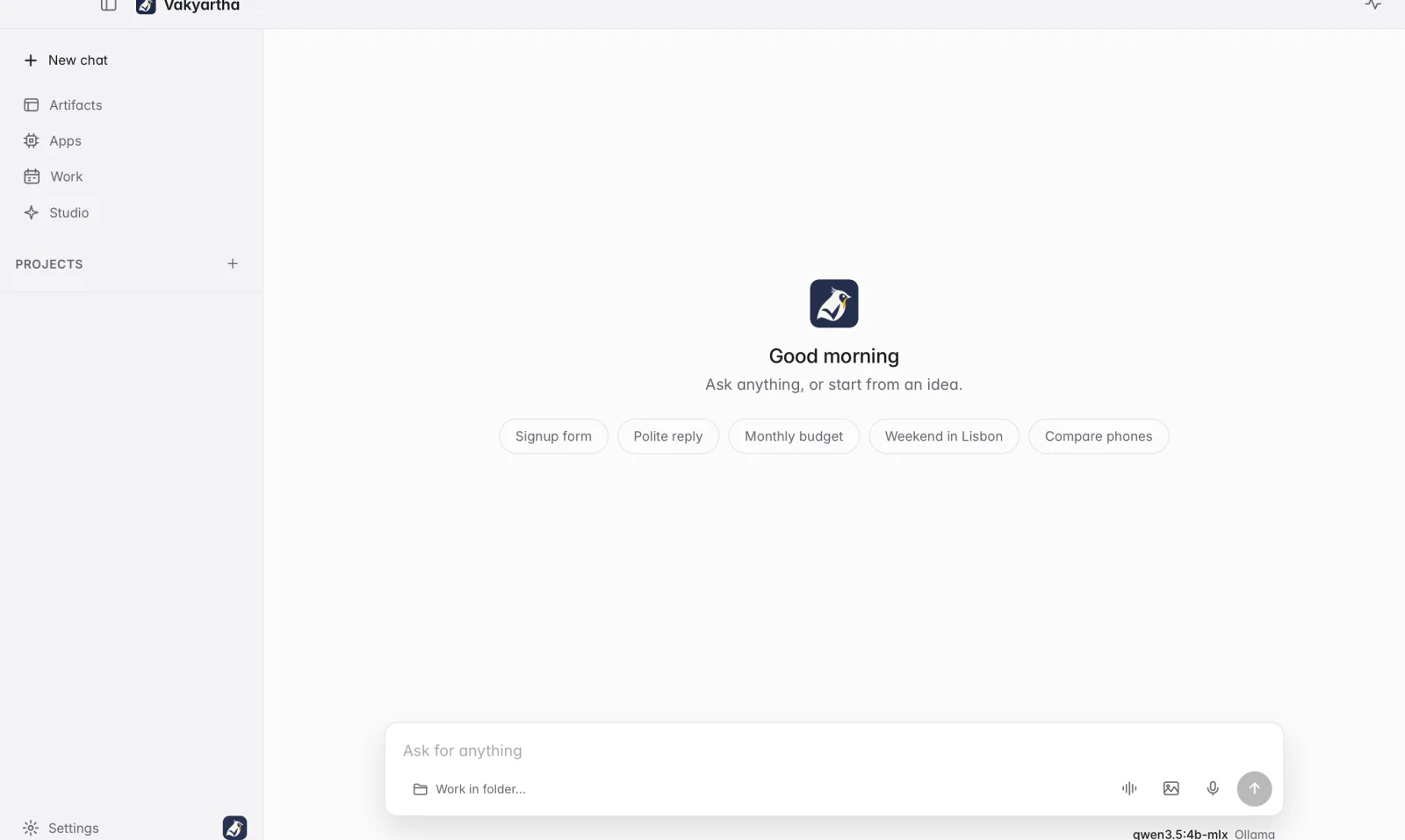
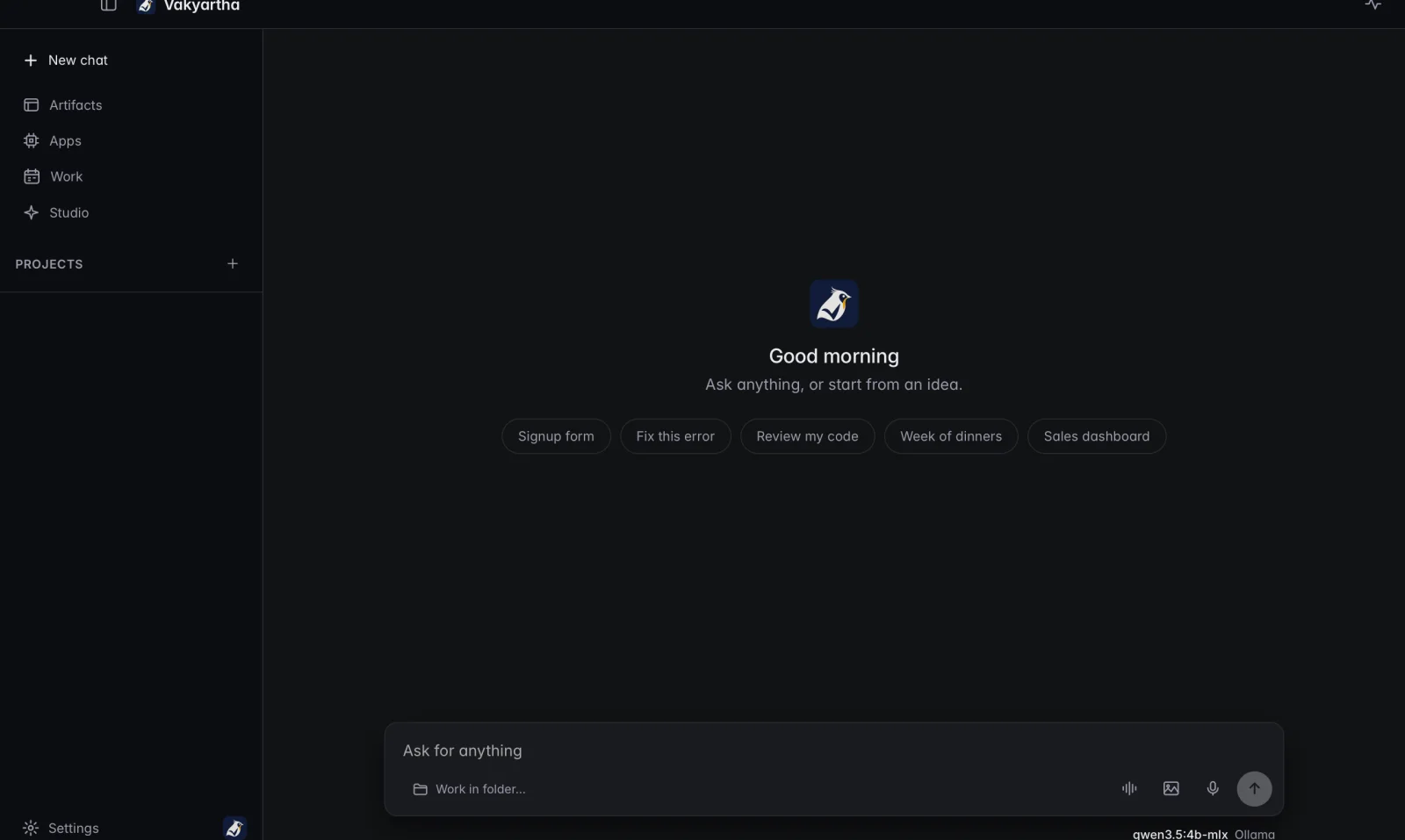
The Vakyartha window: the sidebar with New chat, Artifacts, Apps, Work and Studio, a greeting with suggested ideas, and the message box The Vakyartha window in dark mode: the sidebar, a greeting with suggested ideas, and the message box
A new chat. The sidebar leads to your Artifacts, Apps, Work and Studio.

02 / Everyday use

Ask, look,
listen, carry on.

Answers in the canvas

Tables, charts, forms and dashboards open beside the chat. Switch between full and split view with Command-Shift-F, and drag the divider to resize. Every answer is kept in Artifacts, where you can search for it and open it again.
Talk instead of type

Press Command-D or the microphone to dictate a message; Return stops, Escape discards. Conversation mode, Command-Shift-D, keeps listening and reads replies aloud, so you can answer questions and approvals out loud.

Listen to a reply

Use the speaker on any reply, or right-click it. Tables are read row by row and charts as a sentence. Choose the voice and speed in Settings, Voice.

Work in a folder

Choose Work in folder under the message box. Vakyartha works on a safe copy, and you review each changed file before anything reaches your real folder.

Hand it a job

Work holds tasks you run now or schedule for later. Each run keeps a record of what was done, so you can check it and carry on.

See what it costs

A local model costs nothing. With an online service, Settings, FinOps shows each answer’s size and likely cost, and you can export it.

From your phone

Connect a chat channel in Settings and answer from anywhere while the app runs in your menu bar.

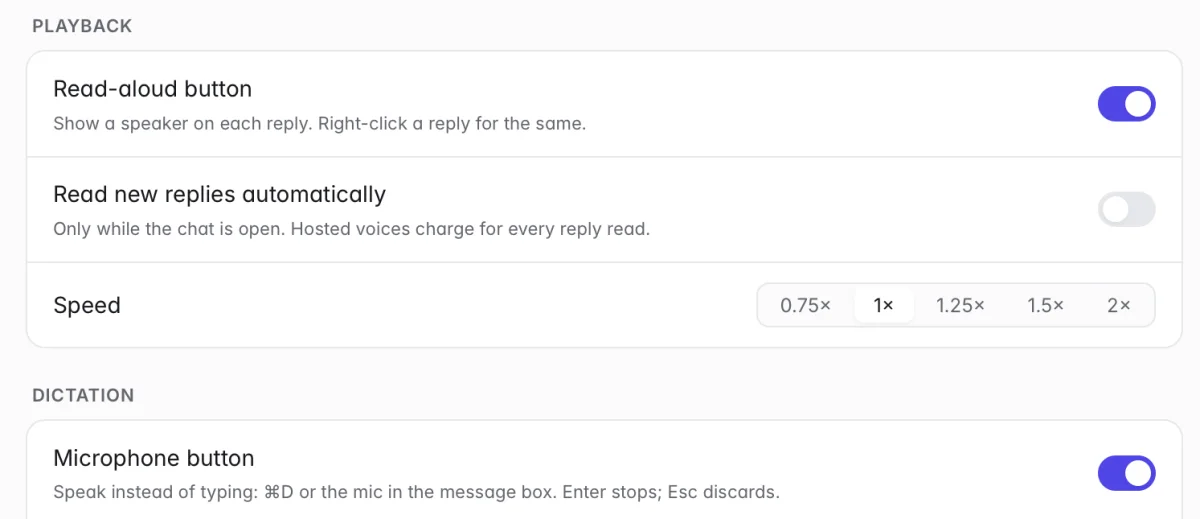
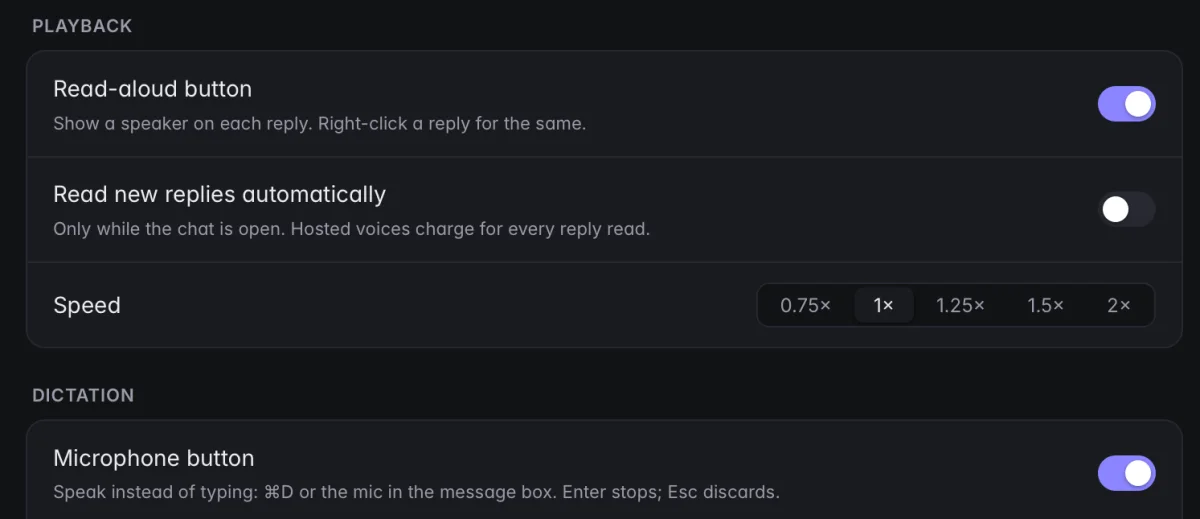
Voice settings: the read-aloud button, reading new replies automatically, playback speed, and the microphone button Voice settings in dark mode: read aloud, playback speed and the microphone button
Settings, Voice: reading aloud, speed and dictation.

03 / Apps

Desks that keep
their own work.

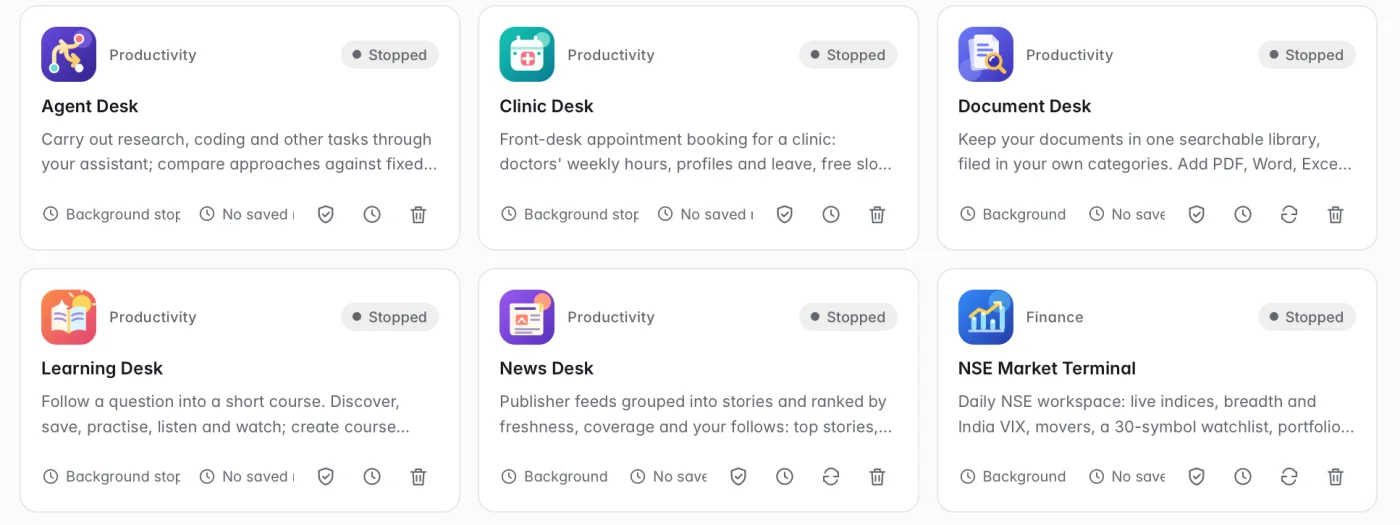
Apps keep their own data on your Mac and work without a model answering every click. Open Apps in the sidebar to see them all.

App cards on the Apps page, each with its category, status, description and controls App cards on the Apps page in dark mode
Each card shows the app’s status, with its access, schedule and updates a click away.

Open an app

Click its card. The apps that come with Vakyartha work as soon as you open them, with no setup.

Keep it running

An app can refresh in the background while Vakyartha is open. Turn this on or off in the app’s Background tab.

Listen and Watch

Some apps turn their news into a short programme. Listen plays it like radio; Watch adds headlines and charts that follow along.

Add more

Browse the catalog, then add an app or skill from inside Vakyartha. Nothing new runs until you turn it on.

Browse the catalog ↗

04 / Your control

Allow, Ask
or None.

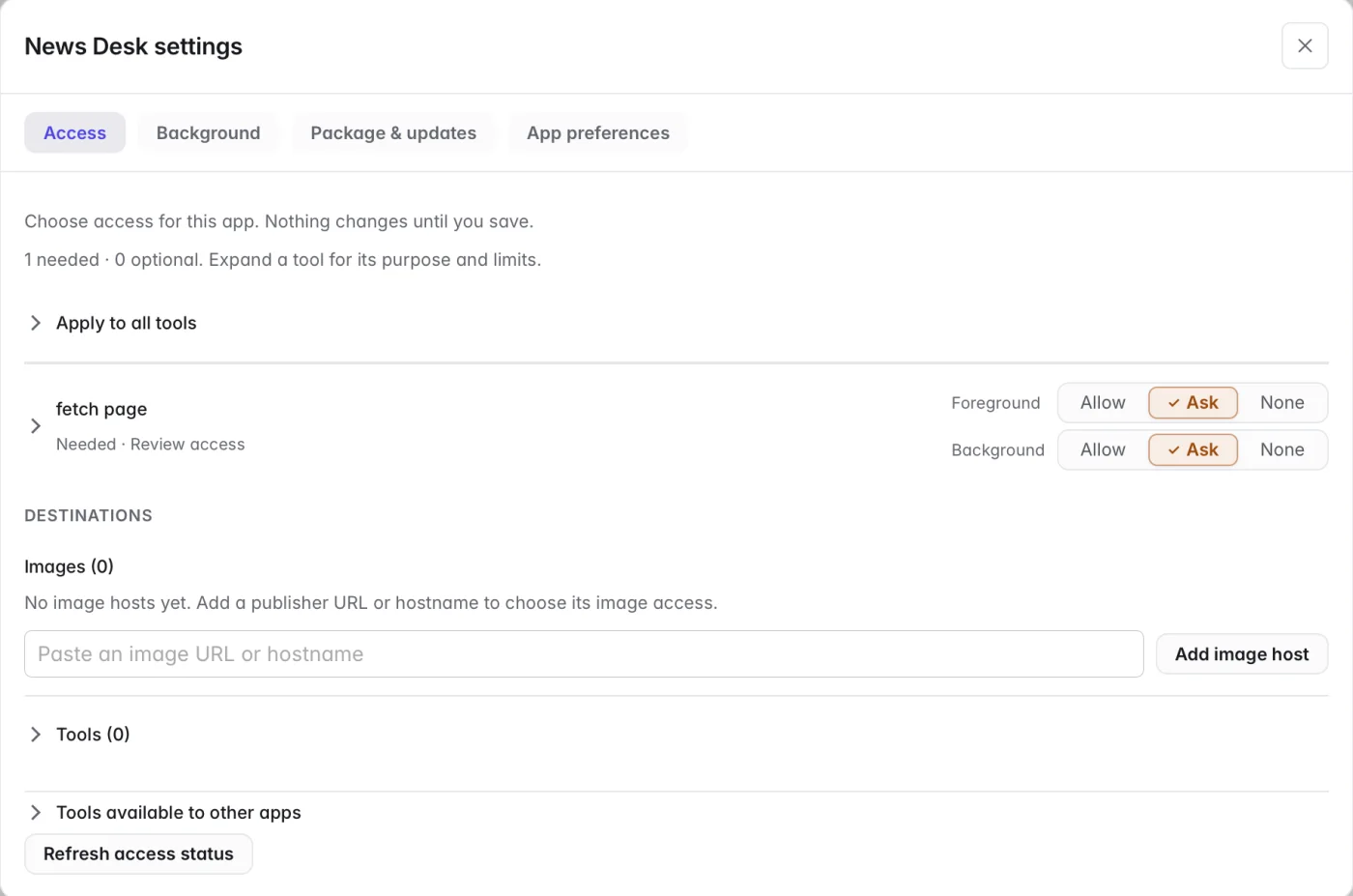
Every tool and every website an app or connection can reach has one of three choices.

Allow

It can be used without asking each time. Choose it for things you trust and use often.

Ask

Vakyartha pauses and shows you the request first. Anything that writes, deletes or goes online starts here.

None

It is never used.

Change an app’s access

Click the shield on the app’s card. Change as many choices as you like, then press Save changes; nothing changes until you save.

Why do some apps work right away?

Apps exactly as Vakyartha ships them start with the access they declare, so they work with no setup. Your own choices always win. To turn this off, open Settings, General, Trust Vakyartha apps.

More about your control ↗
An app's Access tab: a tool with Allow, Ask and None for foreground and background use, and a list of destinations An app's Access tab in dark mode, with Allow, Ask and None for each tool
An app’s Access tab. The choices shown are an example.

05 / When something goes wrong

Start with
a check-up.

Doctor checks your installation and tells you what to do next. Open Operation Center from the Apps page or the Vakyartha icon in the menu bar; Doctor is its first tab.

macOS won’t open the app

Builds are not yet notarized by Apple. Go to System Settings, Privacy & Security, and choose Open Anyway. You only need to do this once.

Nothing answers

Open Settings, Get started. The first two steps must be done: a model is connected and a default model is chosen. If the free local model is missing or stopped, the page offers to start it or download it.

Answers are slow

A local model runs on your Mac, so its speed depends on your Mac and on what else is running. Long chats take longer; start a new chat for a new subject. You can also choose an online model for a single chat from the menu under the message box.

An app shows no data

Its access may be set to Ask or None for the source it reads. Open the shield on the app’s card and check its tools and destinations. Doctor lists every app that cannot refresh and why.

A reply seems stuck

It may be waiting for your approval: look for a request in the chat. Press Escape to stop a reply at any time.

Dictation doesn’t hear me

Check that macOS allows Vakyartha to use the microphone, in System Settings, Privacy & Security, Microphone. Then check Settings, Voice.

Something else

Run a checkup in Doctor. Each finding says what was checked, what it found and the next step. Some fixes, like restarting a stopped app or downloading a missing model, Doctor can apply after you confirm.

Meet Doctor ↗
Vakyartha in a white doctor's coat and stethoscope, checking a laptop with a checklist and toolkit
Doctor: a check-up for your installation.

06 / Shortcuts

Keep your hands
on the keyboard.

⌘N
New chat
⌘,
Settings
⌘B
Show or hide the sidebar
⌘⌥B
Show or hide the canvas
⌘⇧F
Canvas full view or split view
⌘⇧B
Cycle canvas layouts
⌘D
Dictate a message
⌘⇧D
Conversation mode
⇧Return
New line in a message
Esc
Stop a reply, or close Settings or the canvas

The same list is in the app under Settings, About.

07 / Questions

Good to know.

Where are my chats and files kept?

On your Mac. Settings, About shows the data folder, with Show in Finder. Your keys are kept in the macOS Keychain.

Does it work without the internet?

With a local model, chatting works offline. Anything that reads the web, an online AI service, or an app that fetches news or prices needs a connection.

How do updates work?

A small notice beside Settings in the sidebar tells you when an update is ready. Nothing installs until you say so. Choose how Vakyartha checks in Settings, General, Updates.

What does it cost?

A local model runs on your Mac at no charge. An online AI service you connect may charge you; Settings, FinOps shows what each answer is likely to cost.

Which computers are supported?

macOS on Apple Silicon. Windows and Linux are not available yet.

How do I remove Vakyartha?

To remove your keys, use Remove for each one in Settings, Providers. Note the data folder in Settings, About, then quit Vakyartha and move it to the Trash. To remove your chats and app data too, delete that data folder.

Ready when you are

Ask.
Then go live your day.

Get Vakyartha